Flux's AI agent is now up to 10x faster and self-corrects in real time, delivering cleaner schematics with less waiting and fewer wasted credits.
A case study: Learn how Agri-iO reimagined farm automation with custom hardware designed in Flux.
“Without Flux, it would have taken me months to master another tool. Flux made it possible to design my first board in just a few days, even while I was working a 9-to-5.”
– Michael van Niekerk, Co-Founder and Head of Technology, Agri-iO
Agri-iO is an agriculture-focused automation company that augments people's existing farming solutions with connected hardware and software. They aim to solve the problems faced by farmers who have unreliable GSM signals by automating pumps and monitoring water levels in remote areas. With Agri-iO’s solutions, anything on a farm can be automated and driven from one application, even when there's no Wi-Fi or LTE.
Agri-iO’s Co-Founder and Head of Technology, Michael van Niekerk, has a technical background, but at the onset of the company, he had never designed a PCB. So, when it came time for the team to develop their first product, off-the-shelf (OTS) electronics were the obvious solution.
Agri-iO designed its original products using Pycom’s LoPy devices. These products included automating existing irrigation pivots, tank and dam control, and pump automation. These devices were selected because of their MicroPython-enabled ESP32 chipset and support for LoRa, Wi-Fi, and BLE connectivity. With electronics in hand, Agri-iO wrote its MicroPython code, and the team was off to the races.
It wasn’t long before they started securing large contracts.
However, right before kicking off an important new project, Agri-iO discovered that Pycom was going out of business, and that meant their products were discontinued. Suddenly, Agri-iO was left without a hardware solution and a contract to fulfill.
“We were originally using Pycom's LoPy devices. But the company went bankrupt just before we got a big contract with Zambeef in Zambia, and we found ourselves left without a supply.”
– Michael van Niekerk, Co-Founder and Head of Technology, Agri-iO

At first, Agri-iO’s approach was to find a replacement OTS solution, but they quickly found that the right solution was hard to come by. Most OTS products they encountered supported C++, not MicroPython, and porting the original code proved to be too timely and costly.
So that left them with one option: designing custom hardware. But this wasn’t as straightforward as it sounded.
For starters, Agri-iO had a two-man technical team. Neither Michael nor Stephan Geldenhuys (another co-founder) had ever designed a PCB before. With no support or experience, the team began exploring design tools to pursue their own custom hardware.
However, they found that the design tools on the market were far from perfect. Some tools proved too expensive for a small startup like Agri-iO to afford. Other free tools proved too cumbersome and difficult to learn in a reasonable time, and they were up against a serious time crunch.
“I considered KiCad and Altium Designer, but Altium was too expensive. KiCad was not easy to use, and we didn’t have time to get past that learning curve. Flux was a few steps ahead in terms of ease of use, so we went with Flux.” – Michael van Niekerk, Co-Founder and Head of Technology, Agri-iO
In their research, Agri-iO came across Flux - and it quickly caught their eye.
Flux’s free-to-use nature was the first big draw. The company had limited resources, and a thousand-dollar EDA license was not an option. What proved more important, however, was Flux’s ease of use. Not only was Flux browser-based and compatible with any computing platform, but its extensive library of resources made it possible for the team to hit the ground running.
Shortly after finding Flux, the Agri-iO team came across Flux’s design tutorial and project built around Raspberry Pi’s RP2040. Features and Rust support made the RP2040 the perfect microcontroller for Agri-iO’s needs. So, the team simply forked the Flux example project, and they instantly had a major jump start on their custom design.

From there, the team leveraged Copilot’s guidance to fill in the blanks. Copilot helped them by providing example designs, suggesting components and configurations, and answering questions about which pins connected where.
In only a couple of days, Agri-iO went from a blank slate and no experience to a manufacturable custom hardware solution.
“I used Copilot to ask questions about which pins to connect and to get examples for specific designs. It suggested components and configurations. Copilot reduced the amount of review work needed, and overall, it was a wonderful experience.”
– Michael van Niekerk, Co-Founder and Head of Technology, Agri-iO

Thanks to Flux, Agri-iO successfully fulfilled its existing contracts and has since deployed dozens of units globally. At the beginning of their journey, the Agri-iO team had never designed a single PCB. Today, they’ve designed four custom boards, each of which is deployed in the field and has a major impact on the agricultural industry.
“Nothing was more satisfying than seeing our system working in the field, and we really have Flux to thank for it all. Now I can’t wait for our next batch of boards to arrive and to start shipping them out.”
– Michael van Niekerk, Co-Founder and Head of Technology, Agri-iO
Today, we’re launching automatic photorealistic 3D renderings so that you can put your best foot forward and share your work to the world. Now, anyone can effortlessly create stunning, dynamic, and professional 3D renders.
Steve Jobs once said “...there's just a tremendous amount of craftsmanship in between a great idea and a great product.” We agree wholeheartedly.
However, as PCB designers, it’s not always easy to demonstrate the thought and craftsmanship that went into your design. Other EEs might be able to appreciate your effort and understand the inner beauty of your work, but first, they’d need access to your design files and a compatible tool. Non-EEs may not understand the beautiful intricacies of your design, but they can appreciate a good layout and an aesthetically pleasant board.
In either case, we want to help you better demonstrate your craftsmanship. With automatic, realistic 3D renderings of your PCB, Flux is making this a reality.
Flux's new rendering capabilities automatically create the most realistic and beautiful representation of your design possible. No extra effort is needed to master rendering tools, and no experience is necessary. Now, anyone can effortlessly create stunning, dynamic, and professional 3D renders. And since Flux is browser-based and free to use, anyone can access your renders in real-time with just a link.
But why does this reality matter?
We understand that craftsmanship matters, detail counts, and extend that thinking to how you present your work. Login to your account to see how your projects look with the new rendering engine. 🚀
Discover how AI revolutionizes functional testing for PCB design. Learn to create comprehensive test plans faster with Flux Copilot, accelerating debugging processes and improving product quality.
With Flux, this dream is a reality. With Flux Copilot, you can leverage the power of AI to help you test and debug your circuit designs. Here are your steps and how AI can make this process easier.
Functional testing is the process of testing a mass-produced product to ensure that the high-level system functionality meets the design expectations. The goal is to ensure quality, but that’s not always straightforward.
As a functional testing team member, you’re often asked to develop test plans for products you have not designed and, therefore, have no experience with. Generally, you’re handed a set of design files and a product requirement document. Your task is to take that information and develop a thorough test plan to ensure the product meets all its requirements off the production line.
Generally, the hardest part is becoming familiar enough with the product to develop a comprehensive test plan. Historically, that means dozens of hours spent poring over schematics and layout files. But now, with AI, Flux is changing that narrative entirely.
With Flux Copilot, generating thorough functional test plans is a breeze. Here is what the process looks like
The process starts by importing your design files and product requirements document into Flux. Flux is compatible with design files from all of the major EDA tools, including Altium, Cadence, and KiCAD, so you can use Flux without having to change your tools.
Or, if your design is already native to Flux, simply input your product requirements document to get started.
Next, you should ask Copilot to help you determine what tests need to be run to ensure proper functionality.
Some of the most important questions to address in a test plan include
Copilot helps your team answer all of these questions by developing comprehensive and robust test plans for your design. Simply prompt Copilot with a question like
@copilot Create a comprehensive hardware design test plan for this project for the areas outlined in the testing and validation section. The goal is to ensure all components and circuits function correctly and reliably under specified conditions. Follow the steps:
- Provide a brief summary of the design, including the main functions and critical components of the schematic.
- Detail the requirement of that particular area for the design to work.
- Outline and explain the specific tests needed (with exact tools required where applicable) to verify performance of the hardware design. including test condition and expected behavior.
Once you have a test plan, want to ask Copilot to confirm that the current design is accordingly testable. That means ensuring all necessary signals have test points that can be probed in your testing efforts. You can ask Copilot something like
@copilot, clearly list if the right test points are present to fulfill this test plan.
Flux not only streamlines the testing and debugging process but also enhances the way test engineers and designers collaborate on projects.
In the event that the correct test points are not available, you can then use Flux’s collaboration tools. Simply leave a comment in the project file notifying the design owner of what signals need test points. With this kind of in-tool collaboration, everyone on the team can see the correspondence and the Copilot responses that elicited the design update.
By integrating collaboration within the design tool, Flux ensures that all team members have real-time access to test data, design changes, and analytical insights. This seamless integration allows for immediate feedback loops and faster decision-making, which is crucial when addressing complex design challenges
The final roadblock to fulfilling a testing plan is having the necessary equipment to carry it out. Testing plans often need accompanying testing rigs, which likely necessitate custom PCBs dedicated to these efforts.
Copilot can help by identifying what testing equipment might be necessary and then providing advice on designing that testing rig. Ask Copilot something like
@copilot, what other testing equipment is necessary to carry out this test plan?
If a custom PCB is required, Copilot can help with the process. Check out this design tutorial to learn more about creating custom PCBs with Copilot.
With Flux Copilot, your team can more easily develop comprehensive and thorough test plans that help catch design errors early in the process. This means your team can spend less time correcting errors and less money on unnecessary design revisions. Ultimately, that translates to higher quality products and faster time to market. Want to experience using AI to generate functional test plans? Sign up for Flux today.
Designing an AI pin would normally take months, but in this project, we did it in hours. In our step-by-step guide, you'll see how Flux can accelerate your design process and bring your AI pin project to life.
Flux's mission is to make hardware design accessible and efficient for everyone. Our powerful AI Copilot acts as your personal design assistant, streamlining the process and allowing you to create sophisticated hardware in a fraction of the time. In this blog, we'll show you how to leverage Flux to design your own AI pin in just a few hours.
Designing an AI pin would normally take months, but in this project, we did it in hours. In our step-by-step guide, you'll see how Flux can accelerate your design process and bring your AI pin project to life.
Without Flux, a project would need to start from scratch. With Flux, you can kickstart your project by selecting a ready-made template from Flux’s extensive library. These templates provide a solid foundation, allowing you to focus on customizing and refining your design rather than starting from scratch.
Next, use Copilot to generate and refine block diagrams. Instead of brainstorming with a team, which you might not have access to, you can use Copilot's conversational interface to ask questions, request changes, and iteratively improve your design until it perfectly suits your project needs.
No more sifting through Mouser or Digi-Key, researching hundreds of components, reading through datasheets one by one. With Copilot's help, find and integrate the best components for your design. Copilot assists in researching part numbers (MPNs) and suggesting optimal components, ensuring your AI pin is built with the best available parts.
Once parts are selected, it’s time to wire up your schematic. Normally this would require comparing datasheets one by one to figure out interconnections. With Flux, Copilot does all of the heavy lifting for you. Automate netlist generation and component configuration with Copilot’s assistance by having it tell you which pins connect where and even watching it wire up components for you. This step simplifies the intricate process of connecting different parts of your design, allowing you to focus on innovation rather than manual configuration.
Working alone but need another set of eyes to review your project? With AI guidance, you can perform thorough design reviews and finalize your layout. Copilot helps you compare your design to datasheets and common practices, ensuring accuracy and reliability. It also extracts the necessary equations to check your calculations, giving you confidence in your design.
Ready to get started? Watch our tutorial video for a detailed, step-by-step walkthrough of the design process. Then, open the example project and follow along to create your own AI pin. You'll see firsthand how Flux and Copilot make hardware design faster, easier, and more fun.
Experience the future of hardware design today. Sign up for Flux, open the project, and start designing your own AI pin. Discover how AI can transform your design process, unlock the power of Copilot, and achieve rapid results.
Join the revolution of AI pins — sign up for Flux and start creating now!
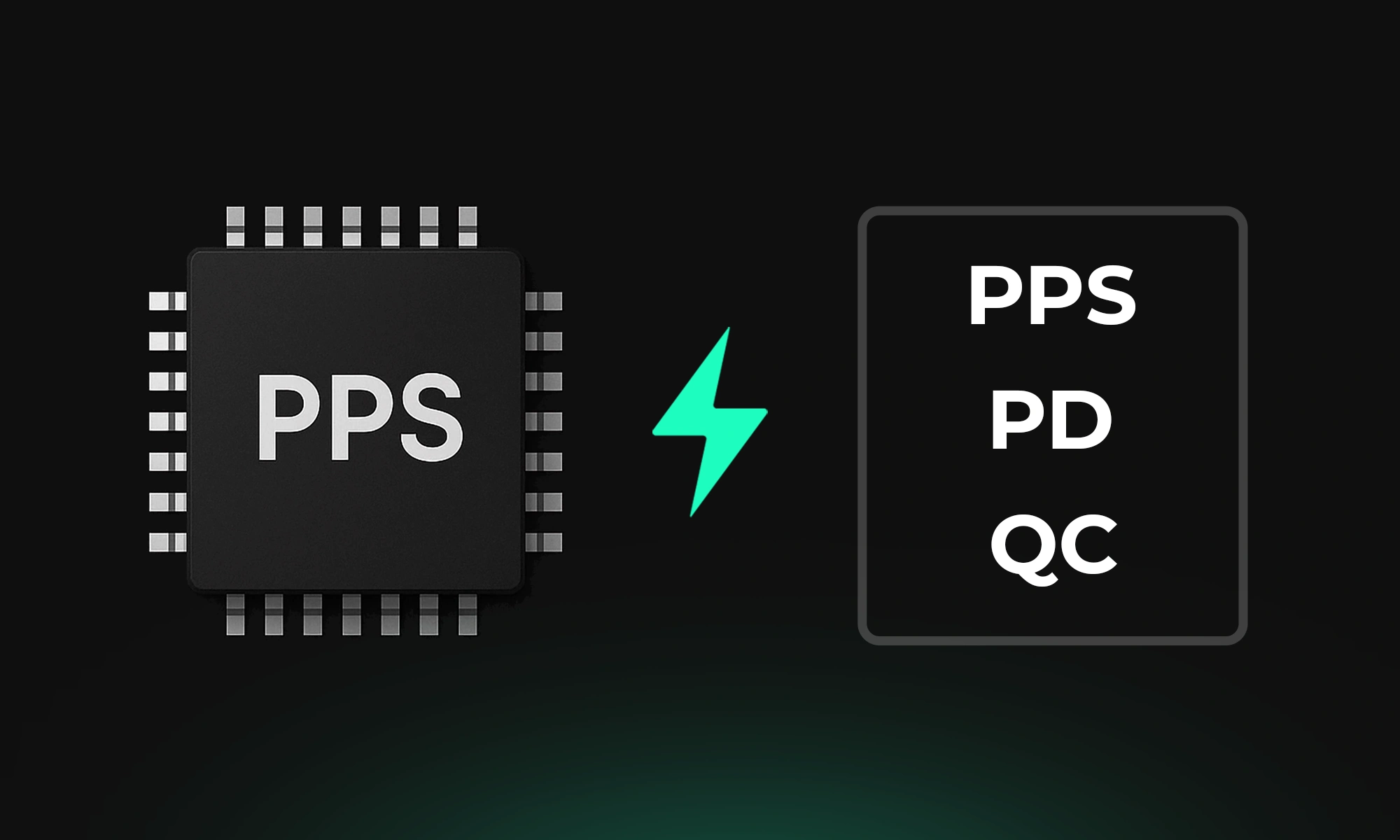
Fast charging has come a long way—and one of the most advanced technologies in this space is Programmable Power Supply (PPS). If you’ve ever wondered why your device charges faster with some cables and adapters than others, PPS might be the answer.
PPS (Programmable Power Supply) is an extension of the USB Power Delivery 3.0 (USB PD 3.0) standard, introduced by the USB Implementers Forum (USB-IF) in 2017.
What makes PPS unique? Unlike traditional fast charging that delivers a fixed voltage, PPS dynamically adjusts voltage and current every 10 seconds, based on what your device actually needs at any given moment. This real-time communication between your device and charger leads to:
PPS support is becoming more widespread in premium devices. Here are a few well-known examples:
Here are some widely used ICs (Integrated Circuits) that power these fast-charging protocols:
PPS fast charging isn’t just about speed—it’s about smarter, more efficient charging. By dynamically negotiating voltage and current, PPS reduces heat, protects battery health, and delivers a better experience for power users.
If you're designing or sourcing power solutions for modern electronics, make sure your charger and cable support PPS. And if you're a developer, integrating chips like the STUSB4761 or TPS25750 can give your products that next-gen charging edge.
Want help selecting a chip for your power design or building your own PPS-compatible device? Let’s build it together.
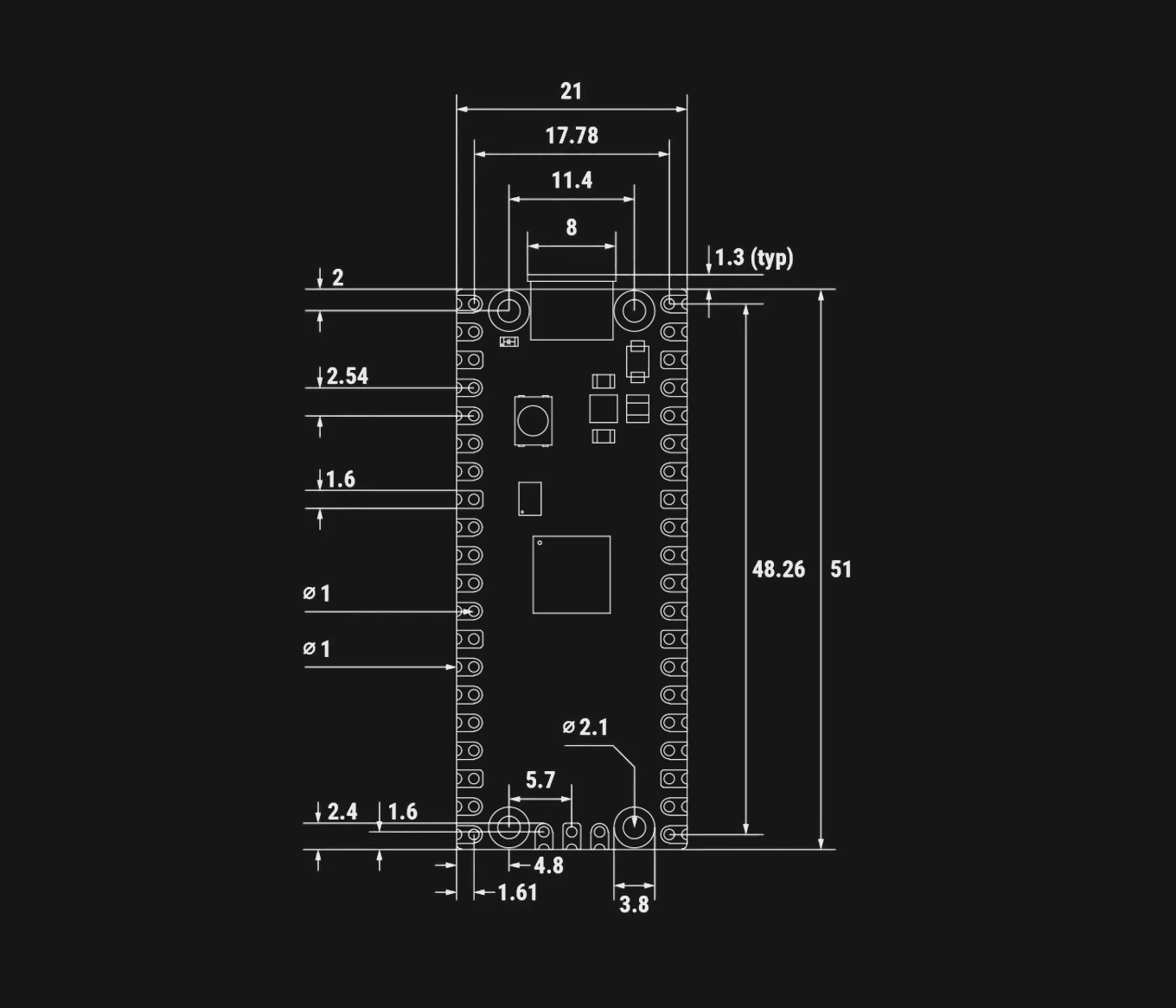
This article will explore the key differences between the original Raspberry Pi Pico and the new Raspberry Pi Pico 2, focusing on the most significant enhancements and what remains unchanged.
This article will explore the key differences between the original Raspberry Pi Pico and the new Raspberry Pi Pico 2, focusing on the most significant enhancements and what remains unchanged.
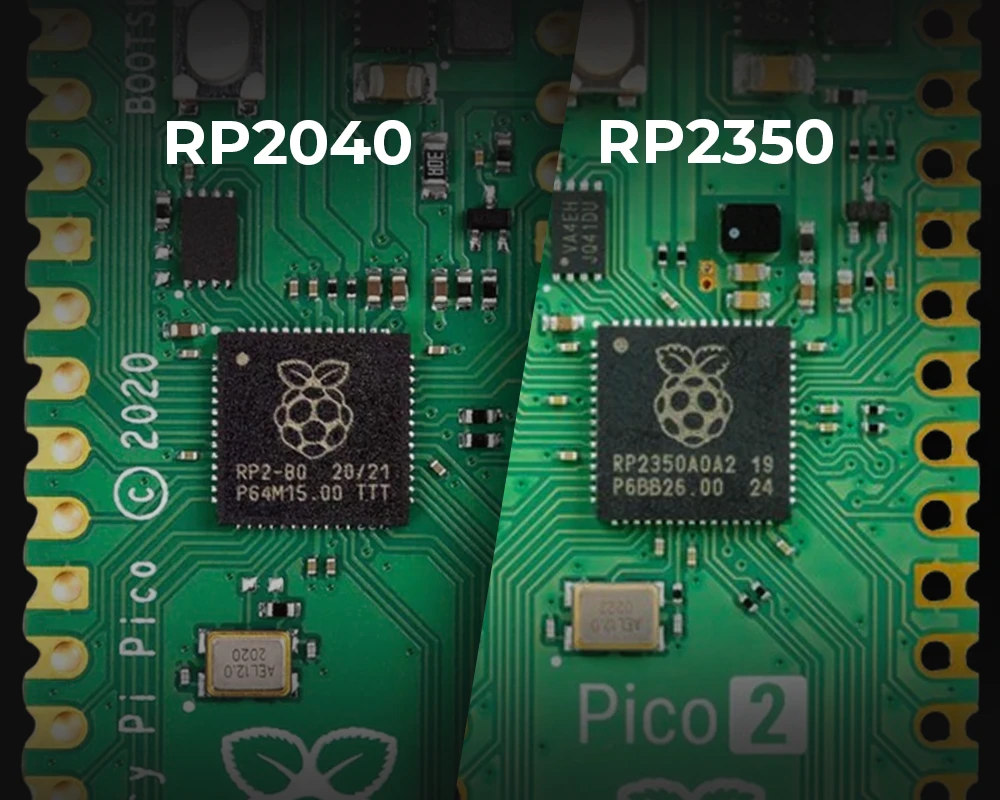
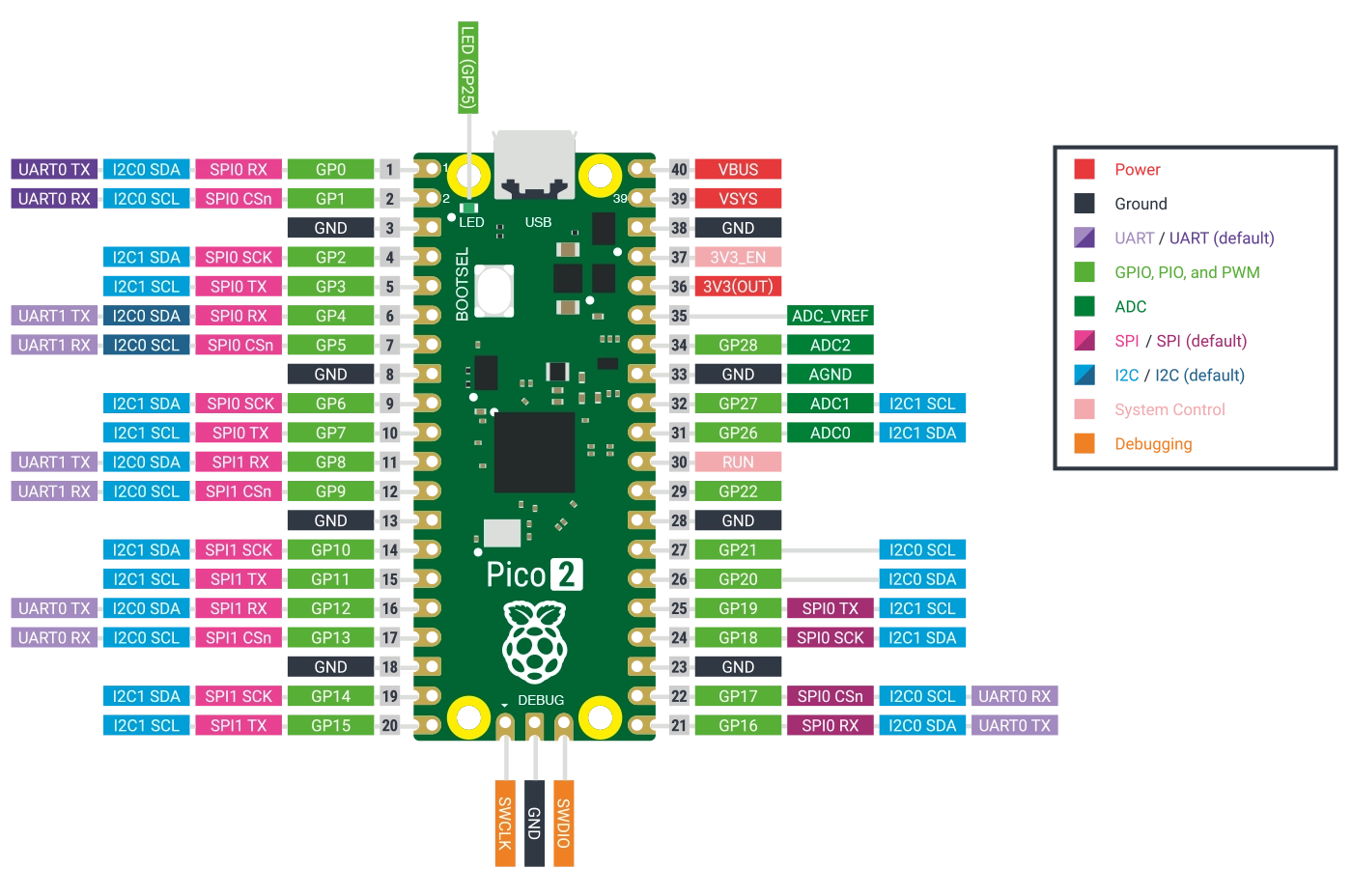
The Raspberry Pi Pico 2 introduces several new features that set it apart from its predecessor, making it a more powerful and versatile microcontroller:
{{insert-project-1-here}}
Discover how the Raspberry Pi Pico 2 outshines its predecessor, Raspberry Pi Pico.
{{insert-project-2-here}}
{{insert-nico-video}}
The Raspberry Pi Pico 2 builds on the foundation laid by the original Pico, offering enhanced processing power, more memory, and advanced security features, all while maintaining the same form factor and price point. The introduction of RISC-V cores in the RP2350 is particularly exciting, signaling a new direction for the Raspberry Pi platform. Whether you're working on a new project or considering an upgrade, the Pico 2 provides a seamless transition with backward compatibility and forward-looking features.
As software support catches up with the new hardware capabilities, especially for the RISC-V cores, the Raspberry Pi Pico 2 is set to become an even more powerful tool in the maker community.
Join the evolution of microcontrollers — sign up for Flux and start innovating with the Raspberry Pi Pico 2 today!